 Cartify
  Vouch
Vouch  BundleUp
 How to create product bundles and quantity discounts on Shopify (2026 guide)
The three kinds of bundle offers, what Shopify can do on its own, and a step-by-step setup of quantity breaks, free gifts and per-unit variants with BundleUp.
By the Rofsky Solutions team 6 min read

A shopper who came for one bottle of serum will often take two or three if the page makes the deal clear. That is the whole idea behind bundles and quantity discounts: show a better offer at the moment the shopper is already deciding, on the product page, next to the Add to cart button.
This guide covers the three kinds of bundle offers, what Shopify can do without an app, and how to set up each kind with BundleUp, our bundle app. The steps are the same ones in our 21-minute video guide if you prefer to watch.
The three kinds of bundle offers
Most bundle offers on Shopify fall into three groups.
- Quantity breaks. More units of the same product cost less per unit. Buy 1 for $40, buy 2 and save 15%, buy 3 and save 25%. This is the simplest offer and works for anything people use up or buy for others: skincare, supplements, socks, coffee, pet food.
- Bundles of different products. A product plus something that goes with it: a serum with a moisturizer, a pan with a lid. The second product can be full price or discounted. “Buy X, get Y” is a special case.
- Free gift with a bigger order. Pick the 3-pack and get a roller free. The gift turns a small saving into something the shopper can picture.
A fourth kind, “mix and match” boxes where shoppers build their own set from a collection, is a different product altogether. It needs a bundle builder page, not a widget on one product. BundleUp does not do collection-wide boxes, so if that is what you need, look for a dedicated box builder.
What Shopify can do on its own
Shopify’s built-in discounts already cover part of this. In Shopify admin > Discounts you can create an automatic “Amount off products” discount with a minimum quantity, or a “Buy X get Y” discount. Shopify also offers a free Shopify Bundles app for fixed bundles.
The limit is presentation. A native automatic discount applies in the cart and at checkout, but the product page does not show the tiers, the saving or a “Most popular” choice unless your theme was built for it. Shoppers have to discover the deal by accident. A bundle app’s job is to put the offer on the product page and keep the discount in sync with it.
Step by step: quantity breaks with BundleUp
Here is the full setup, from install to a live offer.
- In BundleUp, click Add Bundle, then Choose product. This is the product page the bundle will appear on. Each bundle belongs to one product.
- Pick a starting design (Classic, Horizontal, Simple, Vertical or Square) and click Create Bundle. Every design starts with three tiers you can edit.
- On the Offers tab, set each tier’s Quantity, Discount type and Discount amount.
- Tick Default selected offer on the tier that should be selected when the page loads. Always tick one.
- Press Save. With an active plan, Save publishes the bundle straight to your store.
- Back on Home, click Activate App, switch the Bundle up app embed on in the theme editor and press Save there.
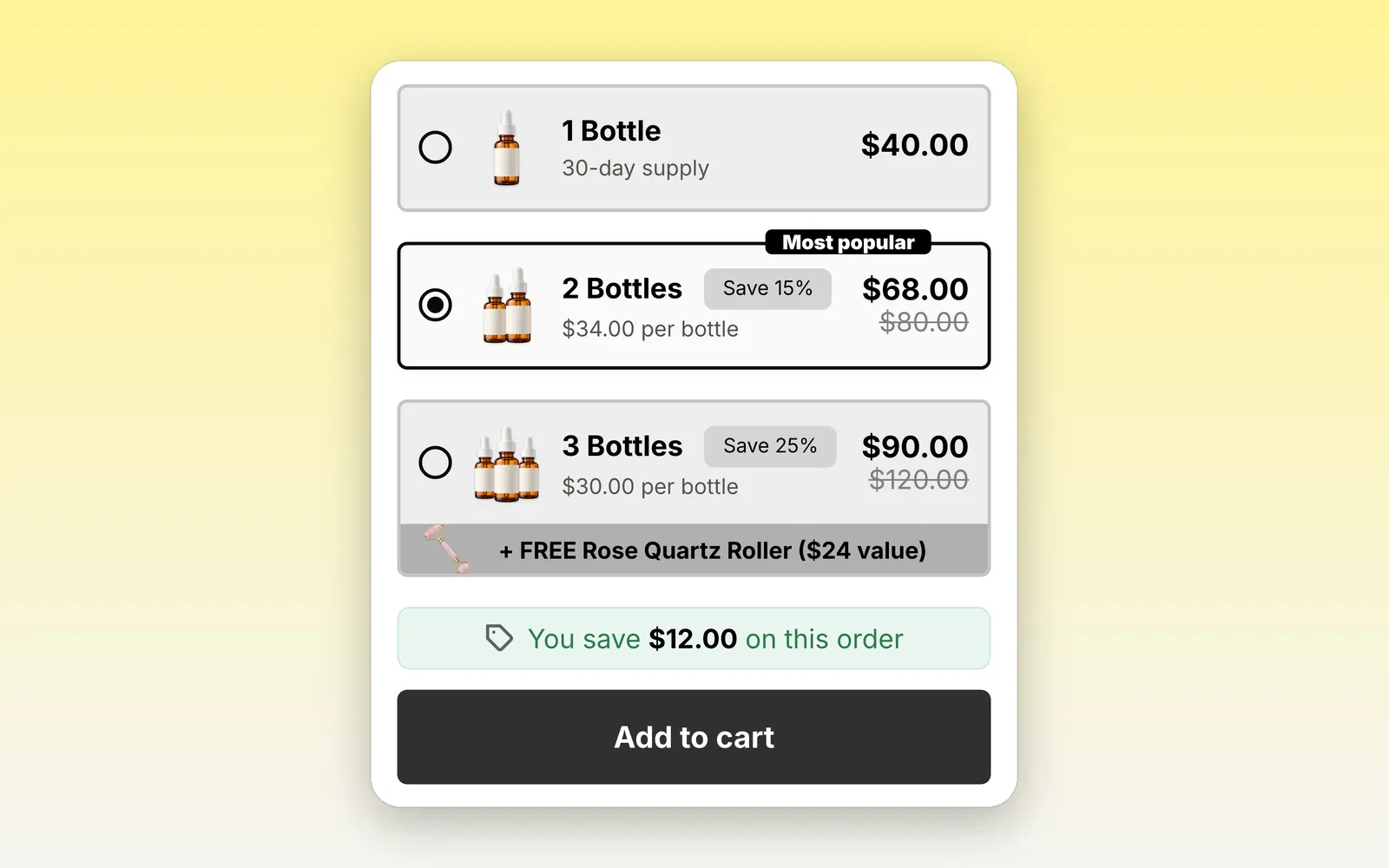
Three tiers, a “Most popular” tag on the 2-pack, struck prices and the saving for the chosen tier.
There are three discount types, and the difference matters:
| Discount type | What it does | Example |
|---|---|---|
| Percentage % | A percentage off each unit | 2 bottles, 15% off each |
| Fixed discount (per unit) | An amount off each unit | $5 off every bottle |
| Fixed price (per offer) | The whole tier costs one amount | 3 bottles for $90 |
A fixed price must be lower than what those units really cost in Shopify. BundleUp can only lower prices, never raise them, so a fixed price above the real price shows in the widget but is ignored at checkout.
Make the better deal obvious
Each tier has its own texts. The tier title (“2 Bottles”) is also the discount name shoppers see in the cart. A label is a small pill next to the title, and a tag floats on the card, which is where “Most popular” or “Best value” goes. Turn on price per unit (“$34 per bottle”) and the Savings message (“You save $12.00 on this order”) so the shopper never has to do the math.
Add a free gift or a second product
Open a tier and use Add free gift to attach a product at 100% off. It goes into the cart with the bundle and is discounted at checkout, where it shows its price with a 100% discount line.
Use Add another product for a bundle of different products. The extra product is added to that tier only, at full price or with its own discount. This is how you build “buy the serum, get the cream at 20% off”.
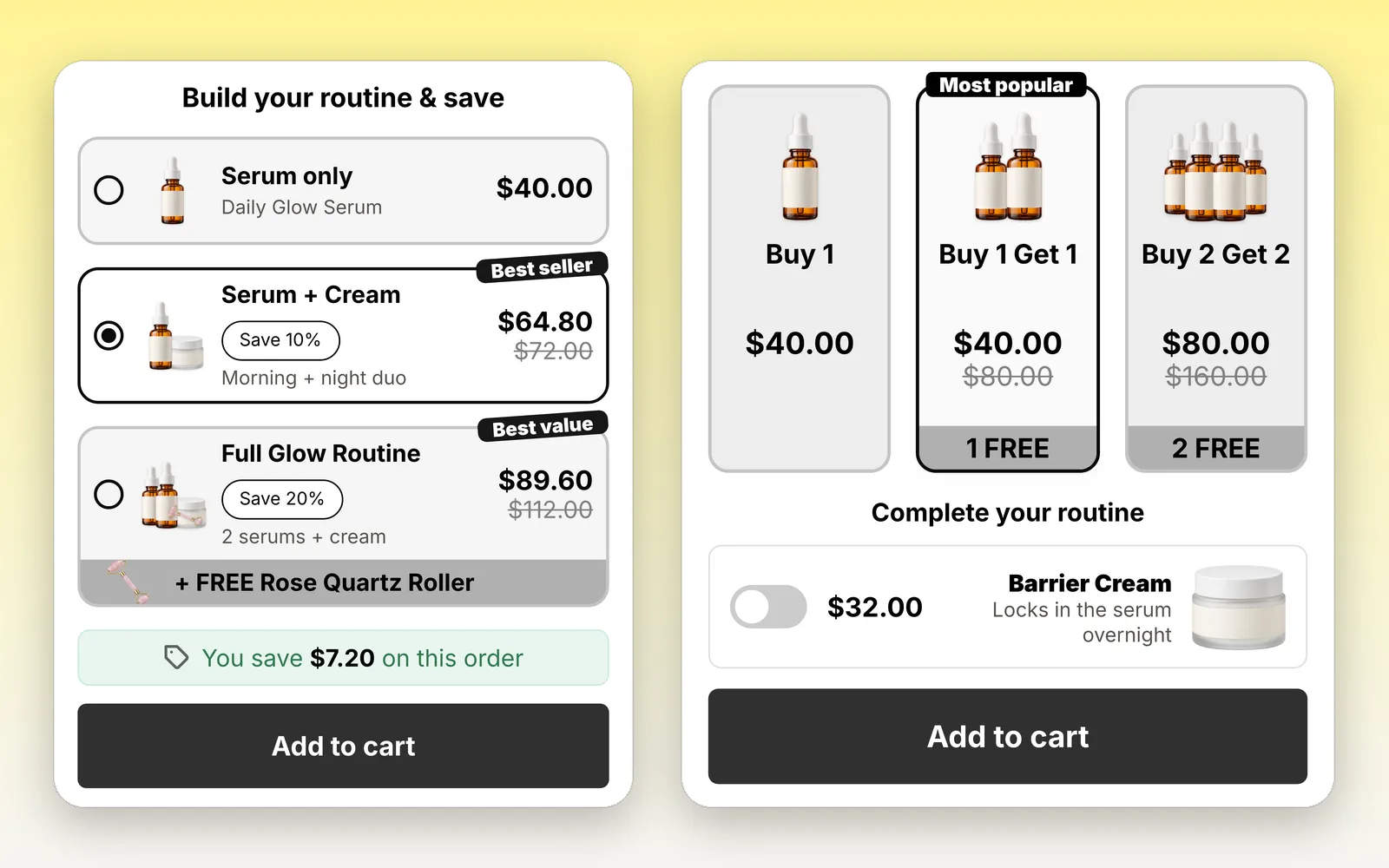
Left: a routine bundle with a free roller on the top tier. Right: Buy 1 Get 1 with an add-on toggle.
For extras that should not be part of the deal, such as a travel case, use the Upsell tab. Add-ons appear under the bundle with an on/off switch and are added at their regular price.
Let shoppers choose a variant for each unit
If the product has options, a 3-pack can be three different colors or formulas. On the Options tab, BundleUp shows a picker for each unit of the selected tier. You choose the default variants on the Default variants tab, and unavailable variants are marked.
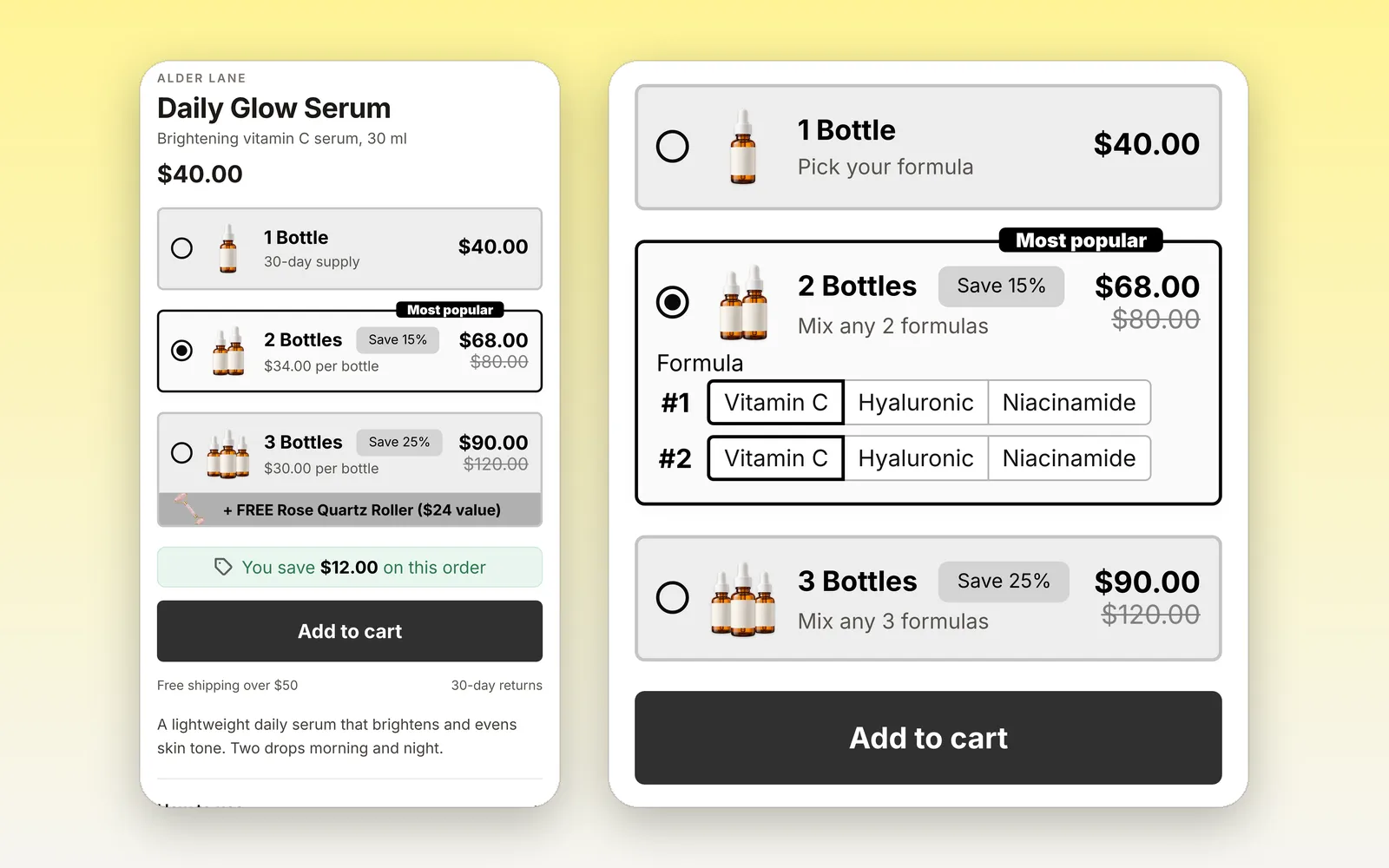
The widget on a product page, and a tier where each bottle gets its own formula.
Or describe it and let the AI build it
If you would rather not set fields one by one, open Design Studio. Describe the offer in plain words, such as “Three quantity tiers, clean modern cards, the middle one highlighted as the best deal”, or paste a screenshot of a design you like. The AI builds the widget with your real product and prices, and an Offer logic panel lists exactly what each tier adds to the cart and what the shopper saves. Nothing is live until you press Save to store.
Each store gets a free monthly AI allowance, and more credits can be bought in the app. The classic editor also has an AI chat that changes its settings for you.
How the discount reaches checkout
BundleUp creates one automatic discount in Shopify, named BundleUp, and keeps it up to date. It matches the quantities in the cart: if the cart holds enough units of the product, the tier’s discount applies, even if the shopper added them some other way. The shopper never types a code.
Two things to know:
- Don’t delete the BundleUp discount in Shopify admin. The widget would still show, but prices would not drop at checkout. If it was deleted, open any bundle and press Save to recreate it.
- Combining with other discounts works only when both sides allow it. BundleUp’s discount is set to combine with product, order and shipping discounts; the other discount must also allow combining in its Combinations settings.
Common mistakes
Almost every “my bundle doesn’t show” message we get comes down to one of these:
- Looking at the wrong product. A bundle shows only on the product it was created for.
- The app embed is off. The Bundle up embed must be on in the published theme, and saved.
- The theme’s Buy buttons block was removed. BundleUp attaches to your theme’s own Add to cart form. Remove it and there is nothing to attach to.
- No default tier. Leave Default selected offer unticked on every tier and add to cart can fail.
- Trying to change the product price in the app. Prices and compare-at prices are set in Shopify admin > Products.
A quick checklist before you go live
- One tier is ticked as the default, usually the 2-pack.
- Every tier has a clear title, and the best deal has a tag.
- Fixed prices are below the real price of those units.
- The app embed is on in the published theme.
- You added a test order to the cart and checked the total at checkout.
That last step takes two minutes and catches almost everything. The checkout total is always the truth.
FAQ
- Can Shopify do quantity discounts without an app?
- Yes. Shopify's automatic discounts can apply an amount off when the cart has a minimum quantity, and there is a Buy X get Y discount type. What they don't do on their own is show the tiers on the product page, so shoppers only see the deal once it applies in the cart or at checkout.
- What is the difference between a bundle and a quantity break?
- A quantity break rewards more units of the same product, such as buy 2 and save 15%. A bundle combines different products, such as a serum with a matching cream. Many stores use both on the same page.
- Do shoppers need a discount code for BundleUp offers?
- No. BundleUp creates one automatic Shopify discount, named BundleUp, that matches the quantities in the cart and applies at checkout.
- Why does my bundle price look right on the page but not at checkout?
- The most common cause is a Fixed price (per offer) that is higher than what the units really cost in Shopify. BundleUp can only lower prices, so set a fixed price below quantity times the product's price.
- Can I give a free gift with a quantity tier?
- Yes. Use Add free gift on the tier. The gift is added to the cart with the bundle and discounted 100% at checkout.
Prefer video?


 Cartify · 5 min
 Vouch · 5 min